Why you don’t write iOS articles on iOS devices

This is an excerpt from a Forbes opinion piece posted shortly before Apple’s WWDC event on June 4th. I can’t actually verify that it was written on an iOS device, but the crazy autocorrect suggests…a definite possibility.

Maybe iOS 12 will support a Siri command to run a grammar check on a document.

Smells Right Interns is the name of my etc. etc.

Hey Siri, hire an editor (lol?)

Quest for a new laptop, Part 3

Two months since my last post and I have…not yet purchased a new laptop.

I have been using my MacBook Pro a lot less. I’ve updated my Surface Pro 3 and have used it a few times. I like having the touchscreen for certain tasks and the keyboard is so much quieter and weirdly nicer than the MBP.

A few updates on my previous picks, which I ranked thusly:

  1. Surface Laptop – best all-around mix of features
  2. HP Spectre x360 – same as above, but dimmer display, less battery life–but 2-in-1 versatility
  3. Lenovo Yoga 920 – keyboard might be an issue, heavier, bulkier
  4. Dell XPS 13 – no touchscreen option but solid otherwise (webcam is a non-factor for me)
  5. Surface Book 2 – powerful and strong in most respects, but big, heavy and expensive

Yep, I’ve eliminated the Yoga 920. It gets a lot right, but after using the keyboard for a bit in a Microsoft store, I don’t think I would be happy with it. It has more travel and spring than the MacBook Pro’s keyboard, but it still feels shallow and too light. The Surface Pro 3’s detachable Type Cover’s keys feel better. So it’s off the list.

Oddly, though, another Lenovo laptop has come onto the list, the ThinkPad X1 Carbon. I hadn’t considered it before because it’s a business laptop and normally quite expensive, but it’s discounted on Lenovo’s site until the end of May.

Lenovo ThinkPad X1 Carbon

Pros:

  • best in class keyboard
  • long battery life
  • excellent 2560×1440 display, especially the HDR version
  • touch is an option
  • includes USB-A and USB-C (Thunderbolt 3) ports
  • includes an HDMI port (!)
  • includes standard fingerprint reader
  • some configurations support Windows Hello with the camera
  • fast SSD
  • quite light at 2.5 pounds
  • rugged

Cons:

  • small trackpad
  • the weird TrackPoint nub still weirds me out (this isn’t really a con)
  • so-so audio
  • mediocre webcam
  • normally quite expensive

For writing, this machine hits several of my critical requirements, with an excellent keyboard, display and long battery life. I’m almost at the point where I’m going to go for this, I’m just mulling configuration options and seeing if anything else catches my eye in the next week.

I’d put the revised list like so:

  1. Lenovo ThinkPad X1 Carbon – excellent keyboard, display and battery life
  2. Surface Laptop – best all-around mix of features
  3. HP Spectre x360 – same as above, but dimmer display, less battery life–but 2-in-1 versatility
  4. Dell XPS 13 – no touchscreen option but solid otherwise (webcam is a non-factor for me)
  5. Surface Book 2 – powerful and strong in most respects, but big, heavy and expensive

I pulled every key off a keyboard, just to watch it die

Actually, I did it to put sound-dampening o-rings under each key cap. I think it was 88 keys total and yeah, it took a good long while. I don’t recommend it as a hobby, unless you’re trying to learn patience and plenty of it.

I did this on the Cooler Master Masterkeys S keyboard I recently bought. It has red switches, which are allegedly quiet, but they are more “quiet” in practise, because while they don’t have the loud (and strangely satisfying CLACK) of blue switches, they definitely do make a distinct click when bottomed out. And my typing involves a lot of bottoming out. And the clicking has a vaguely unpleasant hollowness to it. I experienced some regret over the purchase, but decided to order a full set of o-rings after some testing with a set of six and now that I’ve cushioned all the keys, I can state a few things:

  • the o-rings definitely have a significant effect on sound. The keys still click, but it’s much more quiet
  • the o-rings also eliminate most of the hollow feel of the keys
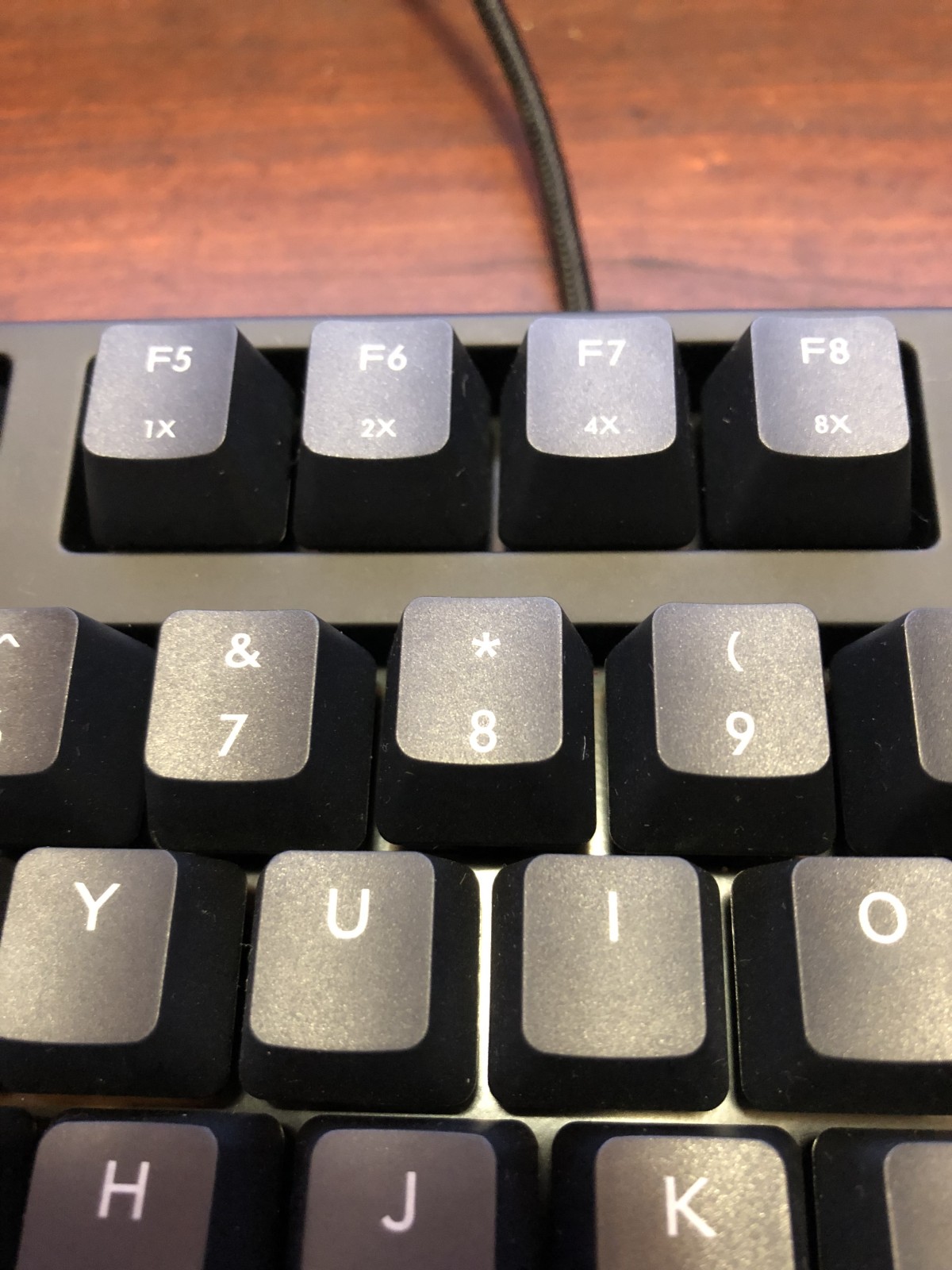
  • it’s still a mechanical keyboard and the keys feel very solid, though the 8 key is curiously shifted slightly up from the others:
As you can see, the F5 through F8 keys adjust the speed of the keyboard, allowing the user to type at dangerously high velocities.

I like it, but I’m still adjusting to it and honestly, I think I may prefer the CLACK of blue switches. The feel is just so weirdly nice.

So my keyboard kaos has settled down for the moment, but there may be one more keyboard in my future…

It’s 2015 (or 2014 or 2013) forever in the Apple store

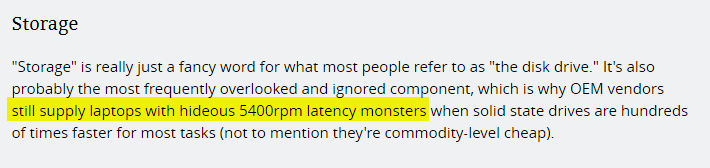
In an Ars Techinica guide on building a custom PC, the section on storage features this comment:

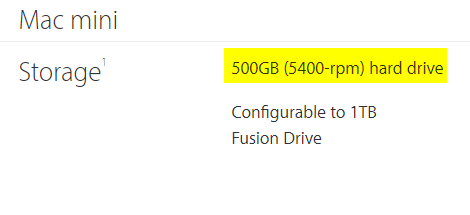
Looking at the Tech Specs for the Mac mini on apple.com yields this under storage:

On the one hand you have a guide to building a PC published in May 2018 that acknowledges the ascendancy of the Solid State Drive (SSD) over the traditional spinning platters of a hard disk. It refers to slower 5400-rpm drives as hideous. Then, hopping over to Apple’s web store, you find the base model of the Mac mini and lo, just like those scurrilous OEM vendors, the Mac mini comes with a 5400-rpm hard disk. This is perhaps not surprising when you consider the Mac mini listed has not seen a change in price or specification since October 2014 (as macrumors.com notes, that was 1297 days ago).

This isn’t even Apple’s most outdated computer. The Mac Pro (which the company has promised will see an update in 2019) was launched in December 2013. Even if the new model ships in January 2019 it amounts to a minimum of just over five years between hardware updates. They did it at least cut prices in April 2017. The base model for this vintage machine is now a mere $3499 Canadian.

The MacBook Air, the “affordable” Mac laptop, received a minor processor speed bump in 2017 that was likely due to the slower processor no longer being available in bulk anymore. Other than this–and that CPU bump did not change the actual model of CPU–the Air has not been updated since March 2015, when it was updated to a 5th generation Intel processor (they are on the 8th generation now).

These three models represent distinct segments in the market:

  • Mac mini: affordable, entry-level Mac
  • MacBook Air: affordable, entry-level Mac laptop
  • Mac Pro: high-end professional workstation

By refusing to update any of these machines, Apple has demonstrated it doesn’t care about these segments. By continuing to sell them for years without updates is both an embarrassment for the world’s richest company and a sign that leadership is not managing the product line in a healthy manner. It also shows a certain level of contempt for the customer. I mean, they could at least drop the prices. They did for the Mac Pro, but even at the reduced prices, it’s a poor value for a pro workstation, given design issues and now obsolete expansion (Thunderbolt 2, etc.). But a semi-obsolete Mac mini at half its current price would at least seem palatable.

But even when you look at the product that makes over half the revenue for Apple–the iPhone–you see the same creeping inability to cull older products. Apple might argue that they are covering different price segments, but other companies actually build products for each segment instead of just continuing to sell old hardware. Even Apple has done this–the new iPad is only $329 U.S. because Apple reverted back to the cheaper iPad Air for much of its design and hardware. But the iPhone line is an array of eight models going back to 2015.

What I’m saying is Apple is doing very well for being so indifferent, sloppy and lazy with so many of its products. I’m kind of jealous.

Keyboard kaos

I have a keyboard conundrum.

I am typing this on a Logitech K750 wireless solar-powered keyboard. It’s got low travel, laptop-style keys, but they still have more travel than, for example, the keyboard on the current-gen MacBook Pro. It’s pretty quiet to type on. My main complaint is that there’s no tenkeyless version. I’d prefer that so I can move the mouse closer to the keyboard, as I don’t use the numeric keypad all that often. Also, it’s got a glossy surface around the keys, which is reflective and mildly annoying. Still, it’s pretty good.

But I miss the mechanical keyboard I was using previously, a Das with blue switches–the noisiest ones you can get, pretty much. But it felt very nice to type on. I’d thought about getting a tenkeyless version (not from Das, they don’t make one), but after trying out the WASD six-key tester that includes all six popular switch types, I finally decided a tenkeyless with red switches would be a better choice. The red switches would offer the benefits of mechanical keys, but without the loud clicking and with less force required for actuation. Win-win.

I ordered the Cooler Master Masterkeys S with red switches and it arrived today from Amazon.

The keyboard works fine, but I was immediately surprised at how much noise it still makes despite having “quiet” keys. There’s no distinctive blue switch CLACK but it still definitely makes a distinctly unquiet click when keys are pressed. Also, the sound makes the keys seem weirdly hollow. I’m not sure I like it.

I’m thinking a tenkeyless with blue switches may be the best choice after all.

BUT…I just tried testing the six red o-rings that came with the WASD tester on the Cooler Master keyboard and I like the results enough in terms of noise reduction that I’ve ordered a full set of o-rings. I should have them in a few days and I’ll see if they do the job. If not I’ll consider exchanging it for the blue switch version or maybe go for a custom-designed WASD keyboard, which, while pricey, would definitely say ME. I’m not sure if that’s a good thing.

Anyway, I now have a whole pile of keyboards:

  • Das mechanical with blue switches
  • Filco mechanical with brown switches (tenkeyless)
  • Cooler Master mechanical with red switches (tenkeyless)
  • Logitech K750 scissor switch keyboard
  • Another solar-powered Logitech designed for Macs/iOS devices (no keypad but not tenkeyless, either)
  • Yet another Logitech low travel keyboard, the K380–but not solar-powered!
  • A Corsair gaming keyboard with mechanical switches that I hated so much I don’t remember the details, but it disabled the Windows key by default and you had to run a macro to enable it. It also weighed 100 pounds.
  • Probably a few others I’m forgetting

I may need professional help. Or maybe another keyboard.

PSA: Do not run your Fitbit One through the washer

The Fitbit One is a step tracker that, unlike most, does not strap onto your wrist. It comes with a clip but I always kept it in the watch pocket of my jeans where it tracked faithfully.

I am using the past tense because my Fitbit One is now dead, murdered by washing. To be more precise, when I did my last load of laundry this past Friday I forgot to take the Fitbit out of that watch pocket and realized this with five minutes left in the wash cycle. It came out dead and remains dead. It is tracking in technology Heaven now.

I’ve actually done this once before and the Fitbit One not only survived, it gave me a bonus 1400 steps from tumbling around inside the washer for 45 minutes. The difference this time is the button on it had collapsed into the unit and while it still worked fine after the button collapse, tracking just as it always has, I suspect that this created a gap for water to get in and zap everything to heck and back.

I looked into replacing my deceased device, but apparently Fitbit quietly stopped making the One awhile back. Local stores don’t stock it. The closest replacement is the Fitbit Zip, which only tracks steps and is shaped a bit like a watch, sans strap. But I have my Apple watch now for tracking and it’s on my wrist where it more easily guilts me into meeting my goals (see here for more), so I think I’ll just stick to the one device.

I feel a bit silly killing the Fitbit One like this, but I appreciate the slight de-cluttering of the technology in my life.

The new computer chair

After realizing I am not ready to spend $1,000 on a new computer/office chair but am ready to spend $200, Jeff and I went out tonight to grab a MARKUS from IKEA, the budget pick in The Wirecutter’s guide to The Best Office Chair. I went for the Vissle dark gray as I prefer fabric over black leather and as a bonus, it’s $60 cheaper. After discount it was even less, only $129. It was so cheap I was tempted to spend $29 on the optional KOLON floor mat. Actually, I wasn’t, I just wanted to work KOLON into this post. I can’t help it, I still think half of the names at IKEA are sly Swedish in-jokes on the rest of the world.

After assembling the chair with the mandatory Allen wrench, Jeff wheeled it over and I’m sitting in it now. My back is a tiny bit sore because it is unaccustomed to being straight instead of slouching. The chair has lumbar support so I expect things to improve quickly. It is already a treat to have a chair that can be adjusted to the right height without requiring a pillow on the seat.

The arms are not adjustable, but if the chair is at the correct height it shouldn’t matter and hasn’t so far. In fact, when I’m typing my arms aren’t touching the armrests at all. I will likely lean an elbow on them from time to time, using the armrests to help support my chin under my hand as I think deep thoughts about my writing. Was that sentence awkward? Let me lean back and contemplate this.

Anyway, there’s not much else to say yet at this early point in the chair’s new life under my butt. Plus it’s a chair, it just sits there. It doesn’t really do much else.

But so far it’s a nice chair.

Quest for a new laptop, Part 2

Based on my previously discussed criteria, here are some candidates I’m considering. It’s deja vu all over again, as I did this back in 2016 before buying the non-touch bar version of the 13″ MacBook Pro (which I’m now replacing because I just plain don’t like the keyboard and also I’m kind of afraid of getting stuck keys now that it’s past warranty).

Unless otherwise noted, these laptops all come with the following:

  • touchscreen
  • quad core Core i5 CPU (8th generation)
  • 256 GB SSD
  • IPS FHD display running at least 1920 x 1080

Microsoft Surface Laptop

Pros:

  • lightweight at 2.76 pounds
  • among the best Windows laptop trackpads
  • solid keyboard
  • long battery life
  • slightly better than HD resolution at 2256 x 1504 and large 13.5″ display
  • 3:2 display ratio means less vertical scrolling
  • Windows Hello support
  • Alcantara fabric on keyboard (possibly also a Con)
  • four colors!

Cons:

  • few ports. Really only one USB 3 and mini-DisplayPort
  • no USB-C ports
  • screen wobbles a bit when using touchscreen
  • uses 7th generation CPU
  • doesn’t include a pen

The main selling point of the Surface Laptop is it does everything decently. You might find laptops that offer better individual features but none that offer all of them at the same consistent level as the Surface. Still, the design has always struck me as being very conservative. When you look at it closely it appears to be a Surface Pro with a permanent keyboard attached, down to the same deficiencies that the Pro has, with few ports, no USB-C and so on.

That said, because it gets all the basics right, it’s a strong contender.

Dell XPS 13

Pros:

  • even lighter with the 2018 redesign at 2.70 pounds
  • sexy slim bezels
  • excellent if slightly glossy display
  • excellent keyboard
  • good touchpad
  • good battery life
  • USB-C ports
  • Windows 10 Pro is an option
  • optional fingerprint reader
  • Windows Hello support

Cons:

  • still has that nosecam, just moved to the bottom center now
  • FHD (1920 x 1080) models do not include touchscreen
  • no legacy USB 3 ports
  • battery life not as good as previous Core 8th gen model

The Dell XPS 13 is often cited as the best Windows laptop (The Wirecutter calls it the best Windows Ultrabook) but the current version ditches all legacy ports, meaning you’re probably going to need dongles. It’s also a poor choice for those who need a webcam, though that’s a non-issue for me. Nearly everything about it is appealing or at least livable, but for some reason Dell is not offering the HD model in a touchscreen variant. This gives me serious pause, as I’ve come to really like touchscreens on Windows laptops.

HP Spectre x360

Pros:

  • light at 2.75 pounds
  • fairly compact design
  • includes both USB-C and USB 3 ports
  • 2-in-1 design, so screen can be folded around to use for drawing, watching video, etc.
  • Windows Hello support
  • includes pen
  • good keyboard
  • good display
  • great value for what it includes

Cons:

  • some persistent complaints in reviews about coil whine give pause
  • wobbly touchscreen
  • battery life is only average (but still good)
  • screen brightness is only average

The Spectre x360 comes close to hitting all the marks, with battery life, brightness and a wobbly touchscreen primarily holding it back. Plus the snazzy dark ash silver color is hard to find without ordering direct from HP (I prefer darker-colored keyboards to others, especially silver, which is the other color option here).

Lenovo Yoga 920

Pros:

  • Very good battery life
  • 2-in-1 design
  • capacious 13.9″ display
  • sexy slim bezels
  • Windows Hello support
  • fingerprint reader
  • includes pen (when buying from MS)
  • Windows 10 Pro is an option
  • 3 colors!

Cons:

  • a bit heavy at 3.1 pounds
  • not as compact as other ultrabooks
  • shallow keys “similar to a MacBook Pro keyboard” (The Verge review) – yikes!
  • screen brightness is only average

The main reasons to get the Yoga 920 are its large screen and battery life. Unfortunately the keyboard appears to be reminiscent of the 2016 MacBook Pro–and the MBP’s keyboard is the primary reason I’m looking for a replacement, which may prove to be the 920’s fatal flaw (I’d probably need to test it in person to make a final determination).

Microsoft Surface Book 2

Pros:

  • detachable screen doubles as a tablet and can be reversed to offer drawing/tent modes
  • among the best Windows laptop trackpads
  • solid keyboard
  • outstanding battery life
  • better than HD resolution at 3000 x 2000
  • Windows Hello support
  • comes with Windows 10 Pro
  • USB-C port

Cons:

  • USB-C port is limited by not including Thunderbolt 3
  • Core i5 version uses 7th gen CPU and is more expensive than comparable ultrabooks
  • Core i7 version is $600 (!) more (you also get an integrated Nvidia GTX 1050 at that price)
  • on the heavy side at 3.38 pounds
  • that weird fulcrum hinge with the big dust-collecting gap
  • pen is now a separate purchase

The Surface Book 2 is big, expensive and on the heavy side. On the plus side, it’s powerful, has a large, excellent display, and a very nice keyboard. It’s tempting but…expensive.

Beyond these laptops are plenty of others that get most but not all things right, sometimes by design (to keep price down, for example) and sometimes for no apparent reason.

If Apple revealed a MacBook Pro with a completely redesigned keyboard this year I’d probably consider sticking with it, but that seems very unlikely. They’ll just continue to tweak their existing butterfly design (which some people admittedly love) to make it more reliable, without fundamentally changing the feel of the typing experience.

The XPS 13’s baffling lack of a touchscreen in its FHD model almost puts it out of contention, but I’m keeping it in mind for now. My current ranking would probably look like this:

  1. Surface Laptop – best all-around mix of features
  2. HP Spectre x360 – same as above, but dimmer display, less battery life–but 2-in-1 versatility
  3. Lenovo Yoga 920 – keyboard might be an issue, heavier, bulkier
  4. Dell XPS 13 – no touchscreen option but solid otherwise (webcam is a non-factor for me)
  5. Surface Book 2 – powerful and strong in most respects, but big, heavy and expensive

And now I ponder and, where possible, try some hands-on demos. Most of these are available to look at locally (heck, the Microsoft Store carries most of them), though the newer Yoga 920 appears to be not unlike hen’s teeth in the Lower Mainland currently.

The floppy disk comes back to haunt me

Somewhere in a box I have a bunch of old floppy disks that date back to the early to mid-90s, in formats for Amiga, PC and the Atari ST. I even have a box of old Commodore 64 floppies that date back to the mid-80s–more than 30 years ago now.

I doubt many or possibly even any of these would work now. For the Amiga and Atari ST disks I have no convenient way to find out, as I last owned the hardware for each…back in the early to mid-90s. And the current PC I have, already about four years old, is like the two I had before–no floppy drive. I suppose I could get a USB floppy drive if I really wanted to test the disks, but I’m not that curious.

Basically what I’m saying is the floppy is long dead and I don’t miss it.

But today it came back to haunt me in a way I could never have predicted.

I was taking an online course for Windows 10 and the labs involve using virtual machines through your web browser. In the final lab of the final day of the course, at Step 39 of 47, I suddenly hit a block. And it was shaped like a floppy disk.

Step 39 required me to copy some files to a floppy disk on VM #1 and then put the floppy in VM #2 and run the files from there. I thought it a bit odd to do this because really, no one uses floppies any more. Why not copy the files to a network share and move them that way? Or simulate a USB flash drive? I’m guessing a floppy disk was easiest with the VM setup. Or maybe someone just wanted to be all old school up in the hizzy. No biggie, it’s not like I needed to write a batch file to make it work or anything.

But after copying the files to the floppy and then “ejecting” it by clicking the appropriate icon, I found after “inserting” it into the second VM that it was not showing the proper files. As it turned out, both VMs refused to “eject” the floppy disk, even after restarts. The instructor dubbed it weird, copied the needed files over the network and kindly dumped them on the desktop of VM #2. I completed the lab a few minutes later. But for about 15 minutes I was suddenly reliving every bad experience I’ve had with floppy disks–and I’ve had a few. Press the eject button and you hear the disk try to eject, but it doesn’t. Instinctively start looking for a paperclip you can straighten out and stick into the little hole to force the eject mechanism. Wonder how much–if anything–would be readable once you got the disk out. Contemplate having to go to the computer store to buy another 10-pack of disks. Forget the whole thing and play an Infocom game instead because they’re on the fancy new hard disk you have in your PC and you never have to worry about ejecting it.

Then contemplate how long it will take to get an Invisiclues hint book mailed to you because you’re stuck. Again.

(This was before the internet. It was a dark and scary time, though perhaps less dark and scary than having the internet, come to think of it.)

Anyway, the instructor summed it up best by calling it weird. It truly was. This is not how I like my computer nostalgia.

On the plus side, I’m pretty sure I won’t need to handle a floppy disk–real or virtual–again any time soon.

“Alexa, stop laughing at me”

This story really tickles me for some reason. Maybe it’s because of the sudden seeming obsession with and elevation of AI as a very important thing, coupled with prominent people like Stephen Hawking and Elon Musk warning about our grim SkyNET future if we don’t keep an eye on it.

You can find this story all over but here’s Ars Technica’s: Unprompted, creepy laughter from Alexa is is freaking out Echo owners

In short, Amazon’s Echo smart speaker is randomly laughing due to a bug. It sounds like the start of a horror movie.

The kitchen is quiet. You’ve just come home from work and set your keys on the counter. You haven’t turned on the lights yet, so it’s dark, the only light filtering in through the closed curtain over the sink. You don’t notice the soft glowing edge of the Amazon Echo over on the far end of the counter. But the moment the keys hit that same counter you hear it. A laugh. You swivel around, startled. It stops and you turn back and notice the lit-up ring on the top of the Echo. Did they keys wake it up? That shouldn’t be possible.

And even if it did, why would it laugh?

You stand for a few seconds to see if anything else happens. It remains quiet, so you flick on the light switch. And hear the laughter again. This time you are looking directly at the Echo and it’s clearly the source of the laughter. You’ve never heard Alexa laugh before. It’s unnerving and illogical. You think it must be a bug. You’ll look it up later on the internet (suddenly the thought of using Alexa for the task is incredibly unappealing). For now you decide to unplug it. You’ve just come home from work. You want to relax, not be harassed by a defective hundred dollar AI. You reach behind the Echo to pull the plug and wonder what you’d do if it kept laughing after…

Quest for a new laptop, Part 1

The most important parts of a laptop, from my perspective:

  • Keyboard. I use laptops primarily for writing, so the keyboard is paramount
  • Display. This is #2 because I am going to be looking at the screen intently, riveted by my deathless prose, and I need a sharp, high-resolution display. It doesn’t need to be 4K and probably shouldn’t be, given how it affects battery life. Speaking of…
  • Battery. I need enough battery to allow me to use the laptop multiple times throughout the day without needing to plug it in. The ideal is 10 hours, as this provides plenty of breathing room based on my typical usage.
  • Trackpad. A mediocre trackpad can make editing infuriating. I shouldn’t need to add a mouse to make the laptop feel usable. On the other hand, I can use a mouse if I really need to.
  • Light and compact. I don’t want something that I feel I’m lugging around. At the same time I don’t mind a bit of extra heft if it means not sacrificing anything else on this list.
  • SSD. This is pretty standard these days. It insures that loading programs and saving files happens fast, to minimize disruption.
  • CPU. A Core i5 of some sort is usually good enough. Faster is always better but here it’s more nice than essential.
  • Ports. I don’t really plug a lot of things in, so a wide port selection isn’t necessary. At least a couple of USB-C ports is nice, though lacking those I’d want at least a USB Type A and maybe something to connect to an external monitor, like mini-DP or HDMI.

Everything else would come after this. For a Windows laptop a touch screen is nice to have but not essential, as is the 2-in-1 form factor. I don’t really watch any media on a laptop so have little need for a tent mode. Being able to draw in a tablet mode can be handy at times, but again is merely nice to have.

What laptops meet these criteria? Next post!