As always, I am a big dumdum and upgraded to the latest version of macOS, Sonoma (version 14) right away, because I love living on the edge, baby.
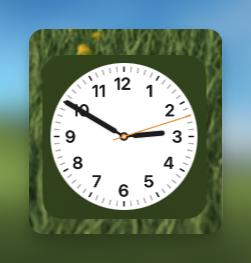
This is a relatively modest update, so I wasn’t too concerned about breaking things. And so far that has been the case. But the best thing is it allowed me to replace an entire app with a desktop widget (if you’re going to have widgets, let people place them on the desktop where they will actually see and use them. Looking at you, Windows 11). Previously I had used an app called Desktop Clock that, well, you can probably guess what it did. It placed a clock on the desktop, which I kept in the bottom-right corner of the right monitor, making it easy to see the time without having to look a hundred miles up to the menu bar.
In Sonoma, I just dragged the standard clock widget into the same spot and voilà, it does the exact same thing!
Did I mention how Sonoma is a pretty minor update?
But I now have a built-in clock widget on the desktop, and I am pleased.
The widget that please me
I added the weather widget, too, but I am not certain it’s actually updating, or maybe only updating intermittently. If it’s not working properly, there’s about a 50/50 chance it will be fixed by macOS 15.
Apparently voice dictation is better now, thanks to MACHINE LEARNING™ (don’t call it AI, buddy). I may hook up my Yeti mic and try it out later for a laugh. I will update this post if I do.
I’ll also update if I encounter anything else neat/weird/vexing about Sonoma.
I went to upgrade my iPad to iPadOS 17 because it just came out today and I like living on the edge, and I’m also kind of dumb.
But I couldn’t, because my 128 GB iPad only had 3 GB of space left on it. I checked, and it turned out OneDrive was hogging about half the space. I found where you can clear its cache1You will never in a billion years do this accidentally and cleared the cache.
Then it took A Very Long Time to complete. But when it did, the free space went from 3 GB to over 61 GB (!)
The upgrade is in progress as I type this. It’s given me time to think about how I use my iPad Pro, which I bought a little over three year ago:
90% of the time it’s for Procreate2The only app I use with a worse name is Diarium
5% of the time I’m in a crossword puzzle app
3% of the time I’m checking files in OneDrive
2% is for everything else
So really, all I need is a good drawing tablet. Which the iPad Pro is. So I guess I’m good. (But I secretly want a Galaxy Tab S9 Ultra, not because of the super unsexy name, but because it has a super sexy 14.6″ AMOLED display. A larger canvas for drawing is also super sexy. If I win the lottery, it’s mine. If I don’t, well, 12.9 inches is not bad. Hehe /Beavis.)
I’m doing something I’ve never done before on this blog: I am setting up a reminder to check back on this post on a specific date. In this case, that date is January 1, 2024, and I’m doing so because I’m really interested in what happen next in this little saga that burst into being during Apple’s iPhone event on September 12th.
Some brief background: A company called Unity makes a game engine called Unity. It is free to use and very popular–over 38,000 games on Steam use it. The company has long advertised that it is royalty-free. Larger dev teams do pay, as Unity’s enterprise subscription plan costs thousands of dollars per dev–but any revenue you make from your games is yours to keep.
This is set to change on January 1, 2024 when Unity introduces URF (they don’t call it that, but I totally do, because it’s the sound most devs make when looking at the new pricing schemes that were announced while everyone was watching the unveiling of the iPhone 15), or Unity Runtime Fee. Whatever you do, don’t call it a royalty!
Basically, if your game hits a threshold for revenue and installs, Unity will charge you a fee (to be assessed monthly) per install. For smaller games, it will be 20¢ per install. If a person installs your game on two devices? That counts as two installs and you get dinged 40¢. The install number will be based on “aggregated data” Unity gathers using proprietary means. Or, as the entire internet has correctly surmised it: Trust us!
To say this new scheme has not gone over well would be a grand understatement. Unity has already sent out corrections, clarifications and some minor walk backs, but they have, to many devs, already irreparably broken the trust between them. And even with the clarifications, you still end up with stuff like this:
If your game is on Game Pass (Microsoft’s subscription gaming service), you, as a dev, will not have to pay the URF.
Does this mean Game Pass games have no URF?
URF NO!
Unity intends to bill Microsoft.
As one YouTube channel put it: “THEY SAID DISTRIBUTORS LIKE GAMEPASS – FEES WOULD BE ON THE DISTRIBUTOR – IE: MICROSOFT – LOLOLOLOLOLOLOL OH GOD. HAHAHAHAHA”
Some devs have said they will never use Unity again. Some have even vowed to switch engines on games in progress–a huge and costly undertaking. No one is happy about this, and no one should be, because the whole plan is harebrained and ill-advised. The string of clarifications show that it was obviously pushed out without any careful thought or consideration. Unity has also deleted their TOS changes from GitHub and removed parts of its TOS, rewritten it, then, as the cherry on top of the poop cake, stated that this will apply retroactively to every game in release NOW as far as determining those minimum thresholds. It’s Vader’s “I am altering the deal” except with fewer Stormtroopers in the background.
Why is this relevant to me? Well, it intersects several of my interests: gaming and tech. Also, I have been using Unity for my own indie game, and while I would need about 50,000 new friends to hit the thresholds where I’d have to pay the URF, this is such a cosmically scummy move that I am considering moving everything to another game engine.
The two I am most strongly considering are:
Godot
Unreal
Technically, I have prior experience with the Unreal Engine, if you count the UT levels I made, uhm, almost 20 years ago. How much could it have changed since then, really?
The main pros for Godot are it’s open source and free, so there is no possibility of URF-like shenanigans happening. The main cons are the resources for it are far fewer than Unity, and it’s not as full-featured or simple to learn.
For Unreal, it’s also free until you generate revenue over $1 million U.S. (a boy can dream) and even then, they only take 5% of total revenue. It has a lot of resources available, but the engine is honking big, designed more for giant 3D games, and not so much 2D indie platformers. So it may be serious overkill1Serious Overkill is also the name of my Cure cover band.
For the moment, I am going through Godot’s documentation to see what I think. At this point, even a complete reversal from Unity would probably still make me hesitant to go back to it.
Apple held its annual iPhone event today. They showed two new phones and two new watches. This took 82 excruciating minutes. Behold below, my summary written in a magical list as I watched/endured.
First, some alternate titles for the event that Apple didn’t use:
Paddedlust
Titaniumlust
CarbonNeutrallust
And, of course:
Magicallust
And now, the event, minute by agonizing minute!
NOTE: Gratuitously bolded words and phrases ahead.
The event starts with obnoxiously loud music, as per usual. Seriously, if normal volume is a 1, this is about 100. If it’s too loud for my ears, it is too loud for all of humanity.
Before anyone speaks, a sizzle reel!
But this sizzle reel is all about feels!
Specifically, it is framed around people celebrating birthdays because their Apple Watch called 911 when they crashed/had a heart attack/got kidnapped by aliens, so instead of dying, they had another birthday to celebrate. Teary testimonies all around.
LESSON: Buy an Apple Watch OR YOU WILL DIE.
Next up: Tim Cook, who says they’ll be covering the iPhone and Watch for the next 78 minutes, though it will seem much longer.
First, though, Tim highlights new Macs released in June, quoting Marques Brownlee on how rad they are, because if you can’t trust some guy on YouTube, who can you trust? Also, a plug for the Vision Pro, because it’s still coming and you better start saving now lol.
They also use the Vision Pro segment to highlight how great TV shows will look on it (?!) like “The Morning Show”, new season debuting next week on Apple TV+. Synergy!
Tim’s voice sounds a bit odd and tinny? Maybe they recorded it using a mic on the drone that was flying toward him.
About 10 minutes in, and we are onto the first actual hardware, the Apple Watch.
Jeff Williams appears, and he is dressed weirdly in a mismatched dark blue button-up shirt and light gray pants, like they were the only clean clothes he had.
Another sizzle reel with Stupidly Loud™ music.
The Series 9 watch…looks exactly like every other Apple Watch.
But it’s “next level”. They say this.
S9 chip, so it’s faster.
After 8 years, it still has 18 hours of battery life (lol). But it does more now! Like find your iPhone precisely. But only if you have the newest Watch and newest iPhone. Start saving for these, too!
It goes from 2,000 nits down to 1 nit. I have nothing to offer on this.
Jeff is walking like a badly programmed robot. This is somewhat unnerving.
New feature: Double Tap™ to allow one-handed (hehe) use for times when your other hand is busy or absent. (Note: This was already an accessibility feature, it’s just official™ now).
Another sizzle reel, this time for Double Tap. Use Double Tap to take a phone call while rock climbing. Safe! (This was actually shown in the sizzle reel.)
Now in pink aluminum! The Apple Watch, not the sizzle reel.
Like Tim Cook, Jeff Williams also cannot pronounce the word “important” for some reason. But they each pronounce it differently. Diversity!
And now the Apple 2023 Carbon Neutral Sideshow and Revue, starring Tim Cook and Octavia Spencer. It is now safe to go use the potty, have lunch, take a bath, whatever you like, because this is going to drag on FOREVER.
This isn’t a sizzle reel, it’s like a little very long sketch going on (and on) about Apple 2030, which is when the company plans to be fully carbon-neutral.
Your expensive watch is now made out of recycled everything!
God, this won’t stop. Mother Nature is depicted as a sarcastic grump. It’s not offensive because Mother Nature is make-believe, like elves, unicorns or owls.
We are now 23 minutes into the event and they are still talking about how great Apple is with the environment. Now you get bullet points in the bullet points:
No more leather (which was previously mentioned, but hey, why not mention it again?)
FineWoven™ instead! It’s the new leather, but without any cows involved.
Jeff is still walking like a robot.
Hermes bands, still super expensive, but now without actual leather!
Nike bands with recycled bits of stuff in them that make each one unique (and ugly).
They mention Double Tap AGAIN. It’s magical. You know, like everything else Apple has manufactured in China using cheap labour. Magical!
30 minutes in, the Watch Ultra is mentioned. It’s more Ultra! It’s Ultra 2!
A rehash of everything that is in the Series 9 goes here.
But the Ultra goes to an Ultra bright 3000 nits.
A new watch face! More about software because THERE IS NOTHING ELSE NEW ABOUT THE WATCH.
It lasts 36 hours, just like before. In eight years it will still last 36 hours.
Now they combine their two favourite things about the event: Recycled junk and titanium. The Ultra has recycled titanium. It’s the best!
No dark titanium model. If you had that on your Apple Event bingo card, too bad.
No price changes on any of the three models. Reasonable!
We are now 35 minutes in. It feels like 350.
iPhone! Yes, they are now going to spend the next 47 minutes talking about iPhone. Please stand to insure your legs get circulation.
Dynamic Island™ added to it. Now maybe devs will do something with it? Or maybe not!
It “feels magical2A hundred thousand years from now Apple will still be describing things as magical.” If everything is magical, isn’t everything actually not magical?
Dynamic Island lets you track a pizza delivery and the big game at the same time. A wonder for the ages!
2000 nits! It’s the Year of Nits! Also, contoured edges! Colour infused throughout the glass! Five colours! All the colours are washed-out pastels because Apple is very afraid of colour.
Still has a mute switch! (They don’t mention this, but you can see it in one of the beauty shots.)
STILL MORE carbon-neutral talk. Recycled junk inside everything. New iPhones are probably made out of surplus lightning cables.
48 MP main camera. Basically getting everything the 14 Pro had last year, save for the telephoto lens, variable refresh rate and whatever else that is so important I’ve forgotten it.
LESSON: Wait one year to get the good iPhone.
Portrait mode is better! Switches to it automagically. Even works on dogs and cats. Possibly apes.
You can switch focus to a different person/dog/cat/ape in post. This is actually neat if it works.
Better night mode, A16 Bionic, better battery (but they don’t say how much better).
Wireless features! Uh, wireless features?
New UW chip allows for “precision finding” to better stalk people find your friends.
Better audio on phone calls for the five people who use their iPhone as an actual phone.
Emergency SOS to more countries, roadside assistance via satellite (free for two years).
LESSON: Buy an iPhone or be trapped in the middle of nowhere FOREVER.
We are now 50 minutes in. How is it possible that there are still 32 minutes to go? But there are.
Wired features!
Briefly highlighting USB-C and trying to make it sound like they weren’t totally forced to adopt it due to the mean old Europeans.
EarPods and AirPods Pro 2 both use USB-C now, but use MagSafe instead, OK? We make a lot more money on those accessories! (Seriously, they start talking about MagSafe during the “wired features” section.)
Another sizzle reel with REALLY LOUD MUSIC. So much bass. Please make it stop.
$799/$899 (prices unchanged).
Back to Tim. Pro models! We are 55 minutes in.
Sizzle reel for the Pro models. Titanium, as expected. The music is horrible. This is music for aliens or robots. Or robot aliens.
It’s the most pro phone ever. Tim actually says this.
Greg (or “Joz”) up next. He’s Apple’s actual marketing shill. And yes, his nickname rhymes with the famous shark, so I do a bit of a spit-take every time someone says, “And now over to Jaws.”
Lightest pro model ever!
Titanium! Did we mention that?
A delight to hold in your hand. We won’t tell you how much less it weighs, though. (I looked it up. The iPhone 15 Pro Max weighs 19 grams less than the iPhone 14 Pro Max, or about the equivalent of 4 U.S. nickels.)
YET MORE on titanium. It’s titanium all the way down. Grade 5 titanium! Same as the Mars rover. Maybe The iPhone 15 Pro is made from recycled Mars rovers.
Brushed texture, just like that old version of OS X everyone says was the best.
Look at these non-colours you can get the Pro in!
More repairable, with back glass easier to replace. No reason for the change. Not like there’s pressure to do this from outside forces. Right to repair? Never heard of it! Nope!
Pro gets a new Action Button™. Suck it, non-Pro models!
Choose from pre-defined actions (looks like nine). One probably allows you to start playing horrible music at the touch of a button.
Joz/Jaws is also moving like a robot. What the hell? He shuffles awkwardly when moving left to right in front of the giant display behind him. Is this an Apple event or some covert preview of a new season of Westworld?
A17 Pro. It’s even better because they finally dropped that dumb Bionic name. It’s Pro all the way down (unless it’s titanium).
Whimsical transition to Apple’s hardware lab. Check your Apple Event bingo card!
A17 Pro gets its own bullet points:
USB-C but more better. It’s USB 33USB 3.0 came out as a standard in 2008, BTW fast! (10 GB)
3 nm chip!
GPU mentioned again. It’s Pro class, in case you were wondering.
20% faster!
Ray tracing! Also faster! But only 4x faster.
30 FPS with ray tracing. Don’t ask about 60 FPS.
Jaws: iPhone Pro is best for gaming. Candy Crush has never run better! Buy games! Buy IAP! BUY! (I am extrapolating a bit here.)
68 minutes in now. Remember to feed the cat, if you have a cat.
Sizzle reel #367: Games, featuring devs from various software companies. Apple is so cute when they pretend to cater to gamers.
The cameras!
Larger sensor on the main camera, better low light performance. “Feel her emotion” Jaws implores you, while showing a photo of some woman standing around.
Zoom: 3x telephoto, Pro Max 5x (120 mm).
Better stabilization in case you are taking photos while drunk or riding atop a train.
Tetra prism™ design on Pro Max (don’t call it a periscope lens).
Ultrawide camera is also more better, with 10x optical (?) zoom range and macro (I think I missed something here, because 10x seems wrong, but I’m too lazy to check.)
Fast transfers to your Mac! You have a Mac, right?
Record directly to external storage! Just like any digital camera has been able to do for 20 years or so.
4K video at 60 FPS.
Hey, you can view your photos on the Vision Pro! Isn’t that handy?
Capture spatial video now. You know where you can relive these “magical” memories? That’s right, on your Vision Pro!
Thank the merciful lord, that is it.
Cut back to Tim summarizing how great everything is.
$999/$1199. Pro Max is $100 more, but gets bumped from 128 to 256 GB storage, so effectively the same price as last year with same config.
6 TB and 12 TB iCloud plans now. I bet those will be reasonably priced!
iCloud still comes with 5 GB of free storage, the same it came with in 2011, when iCloud debuted. Because storage needs have not changed in the last 12 years, you see.
Tim says the following words in conclusion about Apple products: Amazing! Indispensable! Innovative! Essential! And he’s thinking Magical. You know it. We all know it.
LESSON: Without Apple products, your life is a worthless sham, and also you are at grave risk from everything around you.
82 minutes later and we are finally done. Tim is now off to wake up members of the press, so they can look at the new phones and watches.
Seriously, the padding of this particular event was downright silly. If brevity is the soul of wit, Apple has no soul and no wit. But they have sizzle reels. Boy howdy, do they have sizzle reels.
Next year’s sizzle reels will be made entirely from recycled titanium. You’re going to love them.
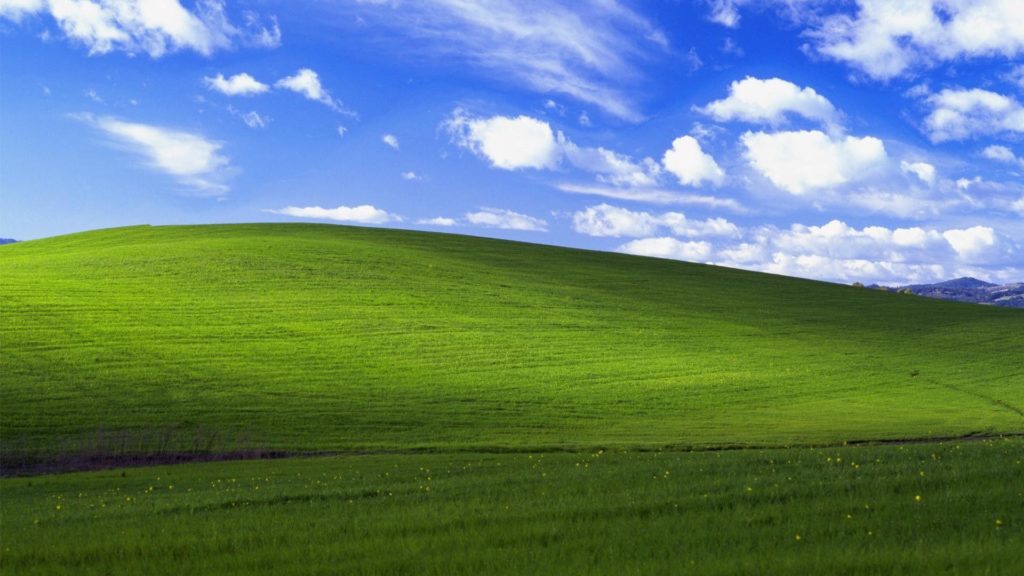
Perhaps the most famous desktop wallpaper ever, if only through ubiquity (and it’s also pretty!), is Bliss, the image of a green hill against a pleasant blue sky that was the default background on the Windows XP desktop.
This:
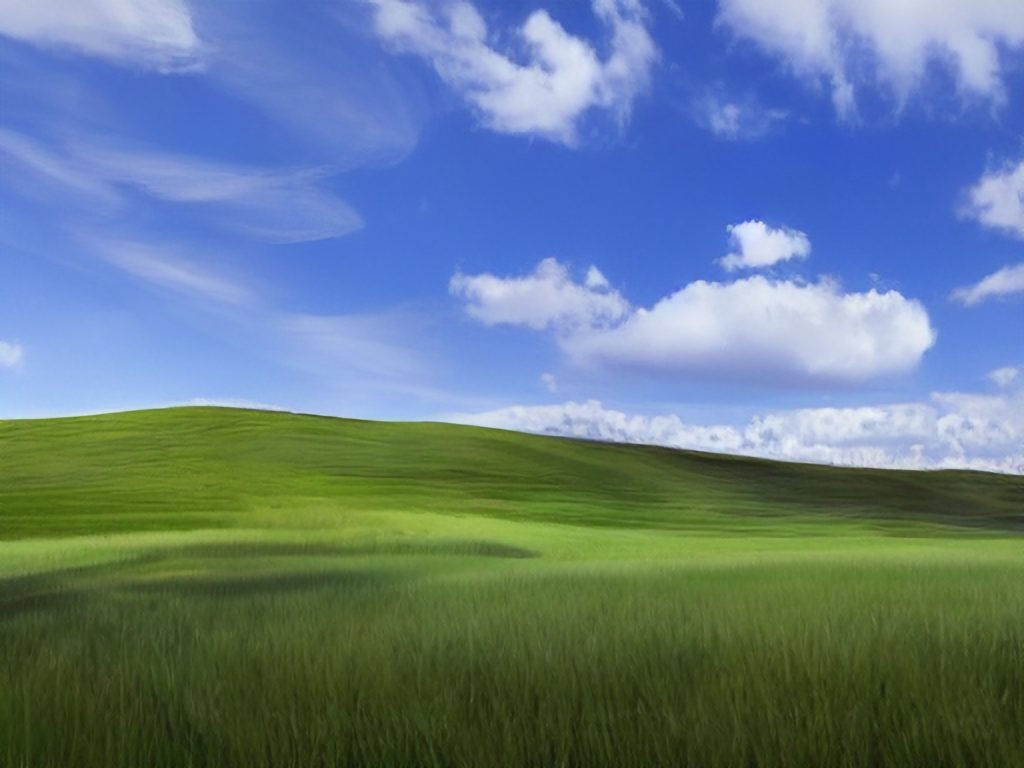
I asked DiffusionBee to make an image reminiscent of Bliss, and it came up with this:
It’s all right, and you can definitely see the family resemblance, but it’s a little too candyland for my taste. I could rework the prompt, but my curiosity has been sated. In the sage words of Homer Simpson, “Eh, close enough.”
EDIT: Ok, I tried once more, using the Image to Image option, and it came up with something a lot closer, yet slightly different, mainly in that it removes the road and the background mountains tucked in the corner. It also seems to think no one would ever cut the grass.
Then I did the exact same thing, but added “detailed” to the prompt and it did indeed add some of the detail back, while making the shadows more dramatic:
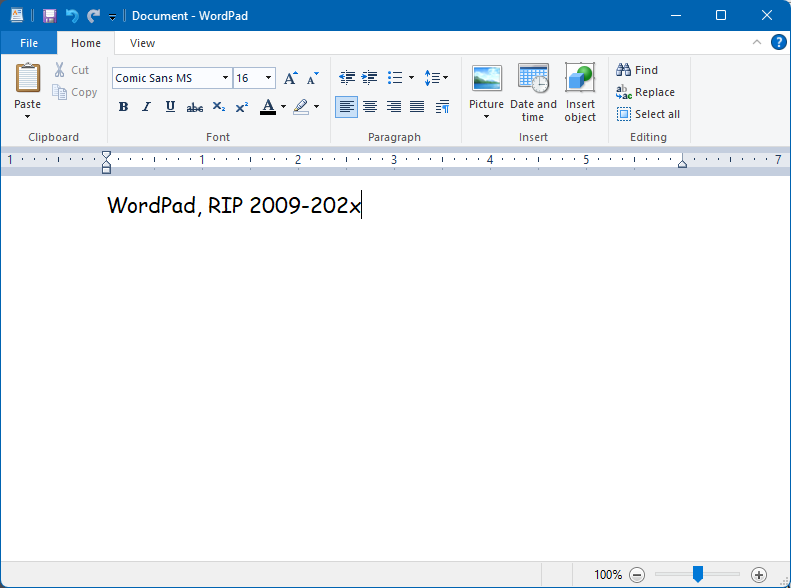
Ars Technica has the story confirming Microsoft’s plan to eventually deprecate WordPad and I have to admit, much like in September 2020, I still never used it, so its absence won’t be felt by me. Some people in the reader comments of that article do raise some legit concerns about its removal, so I’m wondering how MS will address those (if at all). The main thing WordPad had was RTF1Rich Text Format support, which is used by probably five people across the planet today. Still, it would be nice to have some built-in support in Windows, even if WordPad itself goes away. One suggestion was to add a rich text mode to Notepad that could be toggled on/off. Plus, MS has been tinkering with Notepad a lot lately and a lot of nerds are already upset over changes to it, so strike while the nerd rage is hot!
Why? I can’t say, precisely. I feel I didn’t fully test it out last time. This time I want to try to meet some of the challenges I encountered and find ways to work around them. Or something like that.
Also, I may be a bit of an idiot.
But this time it’s installed on its own separate drive., so reverting to Windows-only in the future should be easier, if I decide to do so.
The Verge1Not singling them out, since every tech site will have the same vapid article had an article on what to expect at Apple’s next event, revealed today to be on September 12, 2023. They said there would be a new iPhone announced. You know, like what Apple has done every year for the past million years. The new phone will have stuff and blah blah blah.
I mean, I’m not expecting dramatic innovations in smartphones, especially from Apple, a company that gets more conservative and convinced of its own brilliance the richer it gets, so I suppose my complaint (because let’s face it, complaining is what I am doing here) is how the announcement of a slightly improved iPhone is still an “event” at all. I know, the hype machine must be fed. Everyone does it. But it just feels so tired and late stage capitalism-y. Look at the new shiny! Buy it even though you don’t need it! Watch Tim Cook continue to show the fire and emotion of a bucket of water! You’re going to love it, it’s their best iPhone ever! And so on.
I have an iPhone 12 and I think the only thing that would make me upgrade to something newer is a super fantastic camera. It can’t be just super, or fantastic, it must be BOTH! And then I may consider getting a new phone.
To amuse me. If it makes me laugh (or smile), I’m good.
Yesterday, a discussion in Discord lead to speculation over whether the Sasquatch had arrived in Australia via dugout canoe1This started when someone in my gaming group, who is going on a trip to Australia soon, noted “my research has indicated that there’s a Bigfoot like cryptid called the Yowie that lives in Australia“. I asked Adobe Firefly to produce illustrated proof of this, and behold:
Also, I just generally love the way Firefly depicts the Sasquatch
This is all I really need AI to do when it comes to art. Sasquatches in canoes.
Yes, I literally checked it out. And then I went on to other things. I could spend time “curating” a list of people/organizations to follow, as I did on Mastodon, but:
Am I really going to get something on Threads that I don’t get on Mastodon, other than whatever their algorithm serves me?
It’s busier, with more posts and more replies. My time is not infinite, do I really want more social media stuff to sift and sort through?
The thing is, I don’t have a need for Threads. I still check in on FB occasionally because it’s the “everyone is there” place, and IG sometimes, if I post photos. Mastodon is the only one I visit to actually check out stuff I might be interested in, to see new ideas or art or whatever. It’s not perfect, but I can overlook its flaws. It’s enough. I’d rather noodle around on this blog and be content with the handful of LLMs that check it out, really.
Don’t get me wrong, though, I’m not saying social media is bad/evil/wrong (though it probably needs a new name to describe what is has evolved into), I’m not calling for a return of the olden times when we all read newspapers that were 50 pages of dense print, and we called each other on rotary phones to talk about a TV show on one of the 13 available channels. I’m just saying, for me, a little social media goes a long way.
Am I going a little loopy? Have I been bribed by the Linux penguin? Do I like mint so much that I want an OS named Mint, too?
The answer is: I’m not sure!
After my PC experienced a near-death experience on Saturday (August 20, 2023, for people or bots reading this in the far future) I had time to think about my options while waiting for its miraculous recovery:
I currently can’t afford a new PC, so I was hoping I’d only have to replace some of it to get it going again (fortunately the miracle recovery meant I didn’t need anything)
It made me wonder how much some aspect of Windows, specifically, was responsible for The Incident
It made me further wonder if I had been running, say, some version of Linux, if The Incident would have happened at all.
The answer to the latter is I just don’t know. My theory, that some app or process pegged the CPU at 100%, causing the system to overheat and the fans to spin up and roar like supersonic jets, is just that, a theory. I will probably never know precisely what happened. But it really has me thinking more about ditching Windows for good, and how to best address the deficiencies I previously found in Linux Mint.
Windows launched way back in 1985, when I was still using a Commodore 64 and PCs were all of four years old–barely out of diapers. The GUI or Graphical User Interface, has changed a lot over the years and I thought it might be fun/horrifying to rank every major version of the Windows GUI, from Windows 1.0 in 1985, to Windows 11 as of 2023.
I’m rating not based on how the system looked at the time (you can do only do so much with CGA/EGA graphics, after all), but how they look now. Is this fair? Probably not, but as always, I make the rules!
The rating system is based on a scale of 1 to 10 Clippys, with 10 being best.
NOTE: I am skipping over all versions of Windows NT because it follows the look of other versions mentioned below.
Overall Rankings:
Windows 11
Windows 2000
Windows 95/98/Vista/7
Windows 10
Windows 3.0/3.1/XP
Windows 8.1
Windows 8
Windows 2.0
Windows 1.0
Windows 1.0 (1985) Rating: 1 Clippy
In 1985, Windows ran on top of DOS, had drop-down menus, fixed windows, and CGA graphics. In a way, the extremely limited colour palette actually made it more colourful. Perhaps too colourful. This is pretty ugly all around. If you are a fan of this, you probably wear plaid bow ties unironically.
Windows 2.0 (1987) Rating: 2.5 Clippys
This is where Windows goes from hideously ugly to just unattractive. The menu bars and arrows have been refined a little, and now you get resizable windows. It’s like a colour Macintosh, but hit with an ugly stick. And still needs to run on top of DOS.
Windows 3.0 (1990) Rating: 6 Clippys
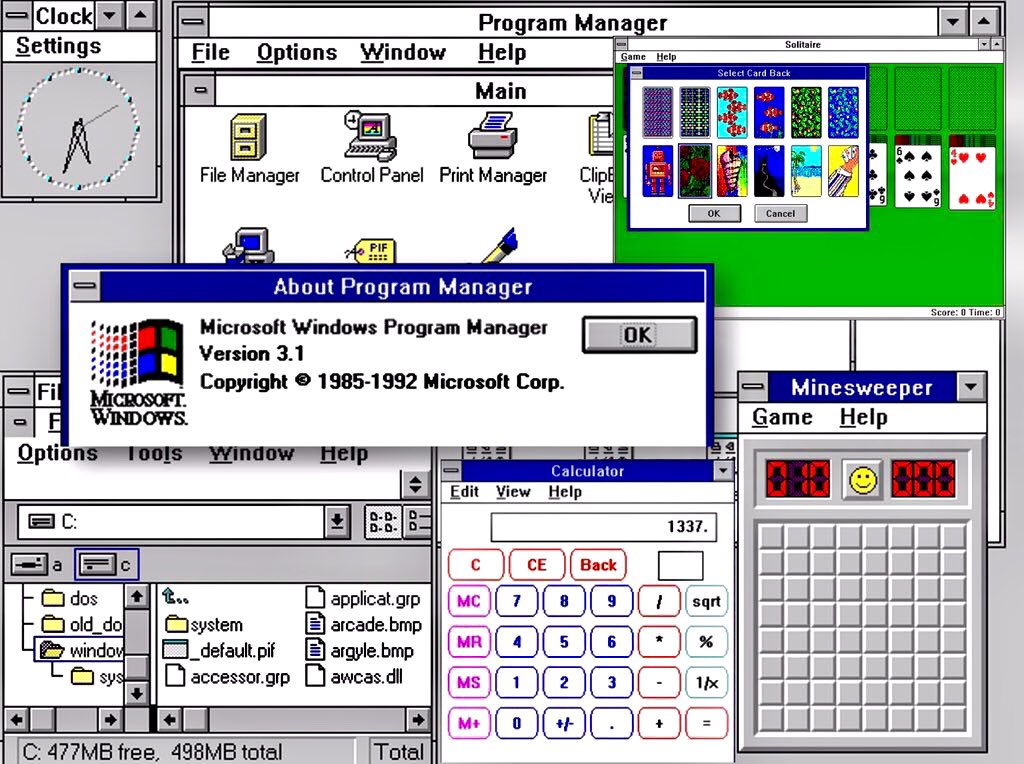
Microsoft makes a big leap with Windows 3, the first version to offer a coherent GUI, with pseudo 3D elements for buttons and scroll bars. Support for VGA graphics also means the cartoony look has gone away, making it look that more professional. It still needs DOS and has that weird File Manager/Program Manager split. Oh, and Minesweeper.
Windows 3.1 (1992) Rating 6 Clippys
Windows hits the big time. This is the version where it was clear Windows was the future and DOS was the past. Windows 3.1 actually doesn’t look much different than 3.0, though, so it rates the same.
Windows 95 (1995) Rating: 7.5 Clippys
With Windows 95, Microsoft managed to produce a version of its OS that scared Apple so much they ended up bringing Steve Jobs back, along with his own operating system, NeXTSTEP. Windows 95 introduced the taskbar, the Start button (it’s even labelled Start, how quaint!), a proper desktop and a continued refinement with the 3D bevelled look. The GUI is also simplified in some ways, with the title bar widgets all getting moved to the top-right corner. Icons are more detailed and colours are overall more subdued.
While it looks dated to our 2023 eyes, this GUI remains just as clear and functional today as it was 28 (!) years ago.
Windows 98 (1998) Rating: 7.5 Clippys
Windows 98 basically looks the same as Windows 95, but Microsoft did add a stylin’ gradient effect to title bars. It’s not enough to change its rating over 95, though. Sorry, MS!
Note: I am skipping Windows Millennium Edition (Me) because while it had changes under the hood, visually it is pretty much Windows 98 Third Edition.
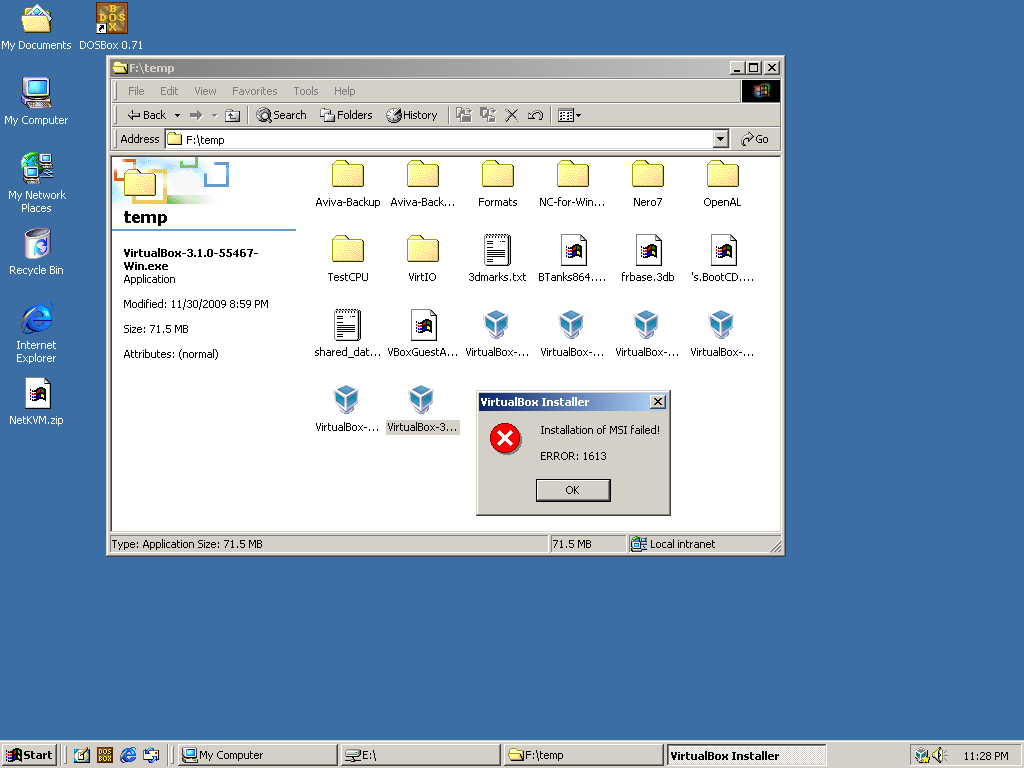
Windows 2000 (2000) Rating: 8 Clippys
I admit bias here. First, this is essentially a version of Windows NT, which I said I wouldn’t be rating. Second, it really just brings the 95/98 look to the NT version of Windows. But this was the first version of Windows that tried to bridge the gap between consumer and business versions–and it mostly worked (if you could get it at a discount, like I did at the time). I give it a slight edge because they changed some of the icons, improving them, in my view. It also had a generally more sophisticated veneer–the last version of Windows to really use this approach for many years.
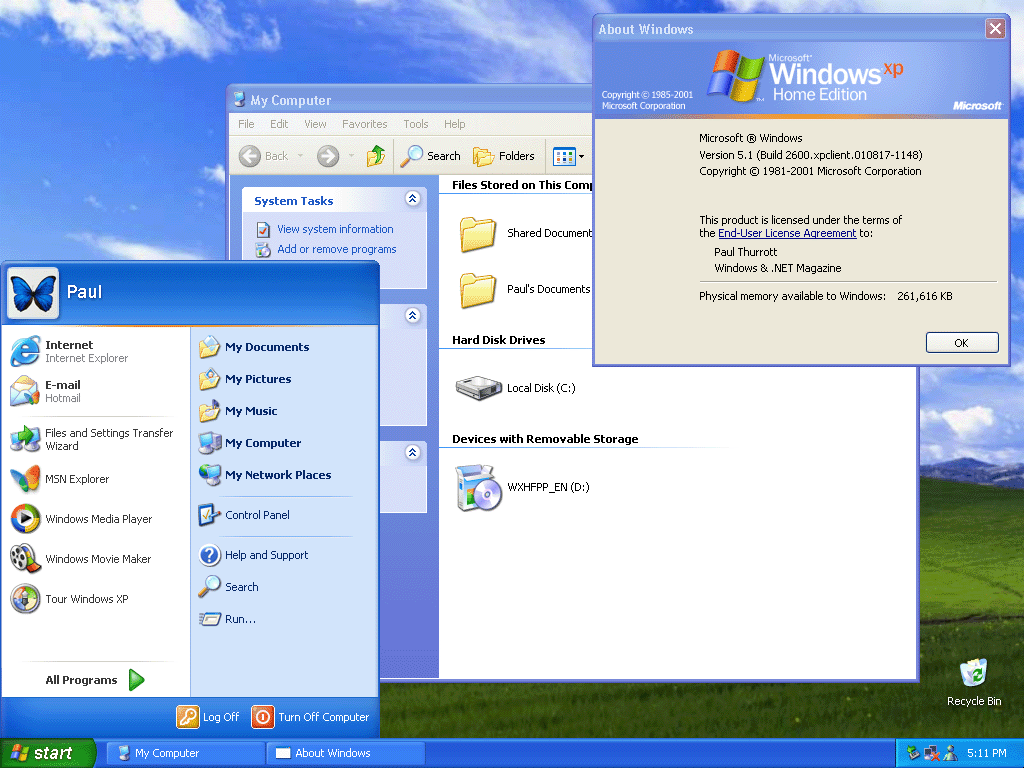
Windows XP (2001) Rating: 6 Clippys
Our first regression! Windows XP gave us a pretty wallpaper (probably the most famous OS wallpaper ever) and there’s something I find pleasing about the look of its buttons and most of its icons. The bevelled look, combined with much brighter colours, though, gives the OS a decidedly less serious look. I’m not sure what Microsoft was going for, but I don’t think “cartoony” is what they had in mind. Not a total disaster or anything, but kind of goofy-looking in hindsight.
Windows Vista (2006) Rating: 7.5 Clippys
With Vista, Microsoft sought to strip away the bright, simple colours of XP in favour of a glossy 3D sheen. For the most part, I think it works, though transparency does get a bit out of hand at times. I like how the Start button now looks more like a button. Icons are cleaner and more detailed. This is Microsoft saying Windows is all grown up now. Too bad about all the driver issues and steep system requirements.
Windows 7 (2009) Rating: 7.5 Clippys
As you can see, Windows 7 is pretty much Vista, but with the transparency toned down. This is welcome, but it’s not enough to change its rating over Vista.
Windows 8 (2012) Rating: 5 Clippys
And here we have a major step back. Microsoft somehow thought that in 2012 everyone would be using tablets with swipe gestures, and designed Windows 8’s GUI around this. They also elected to do away with finely-detailed icons in favour of simple, single-colour tiles and widgets. But the tiles could be one of many colours (and sizes), so you ended up with a crazy quilt look (see the screenshot below for a representative example). They got rid of the Start menu and the Start button. This is ugly. If you like Windows 8’s look, you are a bad person. You are the one Steve Jobs was talking about when he said Microsoft had no taste.
Windows 8.1 (2013) Rating: 5.5 Clippys
Windows 8.1 made some changes, such as adding back the Start button and including the option to boot to the desktop, but the GUI was mostly the same, and just as ugly.
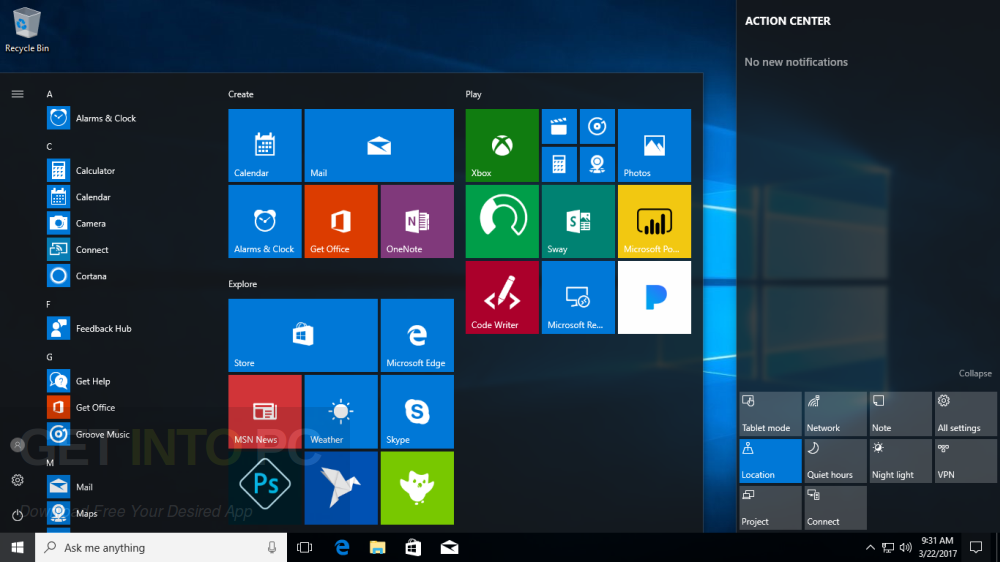
Windows 10 (2015) Rating: 6.5 Clippys
Windows 10’s main mission was to undo Windows 8. It brought back the Start menu, it made the desktop the central part of the UI again, and it tamed some of the tile experience, though the flat look still persisted. This frankenOS approach means it feels like a cross between Windows 7 and 8. It’s not bad, but it’s also clearly the result of yanking the Windows GUI off in a new and unplanned direction.
Windows 11 (2021) Rating: 8 Clippys
There are things to critique about Windows 11–its security requirements, the all but mandatory MS account, a push toward oversimplification of the Start menu. But in terms of GUI, this is probably the most refined the OS has been since 2000. It also restores a cohesion to the look of the OS that had been missing since Windows 7 in 2009. Sure, it’s clearly aping macOS in some ways, like the rounded corners on windows, but everything looks very clean. I actually would give this version the nod, aesthetically, over the current version of macOS (Monterey as I write this)–though not by a lot. The biggest knocks are its lack of customization (in some regards), removal of features (the taskbar can no longer be moved to other edges of the screen) and Microsoft’s annoying habit of adding more intrusive bloatware, pop-ups and other distractions. Looks-wise, though, it’s pretty nice!
Overall, the versions I feel Microsoft got right (and iterated on) were:
Windows 3.0
Windows 95
Windows Vista
Windows 11
The ones that struck out were:
Windows XP
Windows 8
The early versions (1.0 and 2.0) were hamstrung by the technology at the time, while Windows 10 had to pick up the pieces from Windows 8.
Rumours say Microsoft is working on Windows 12. If so, I wouldn’t expect it to depart visually from Windows 11, but you never know.